
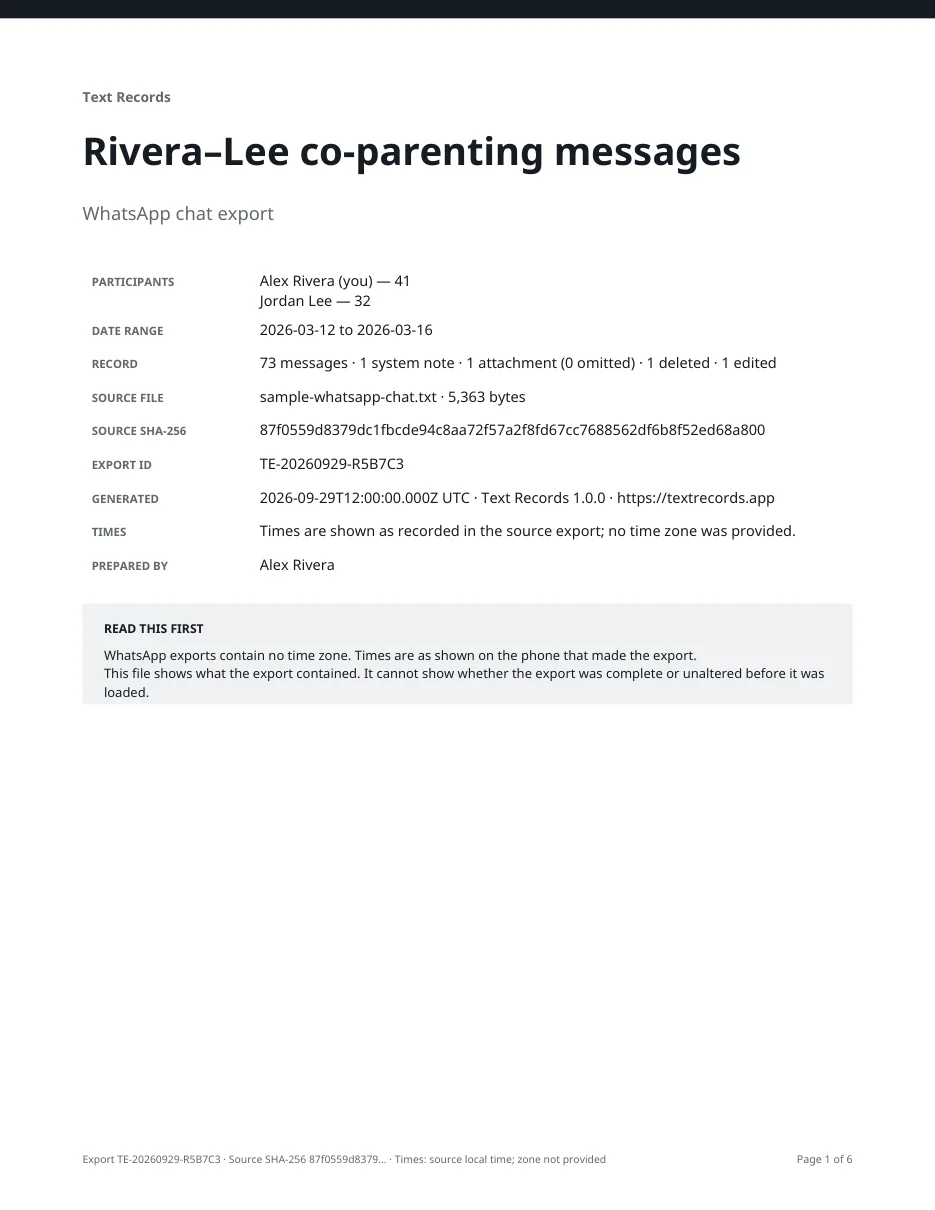
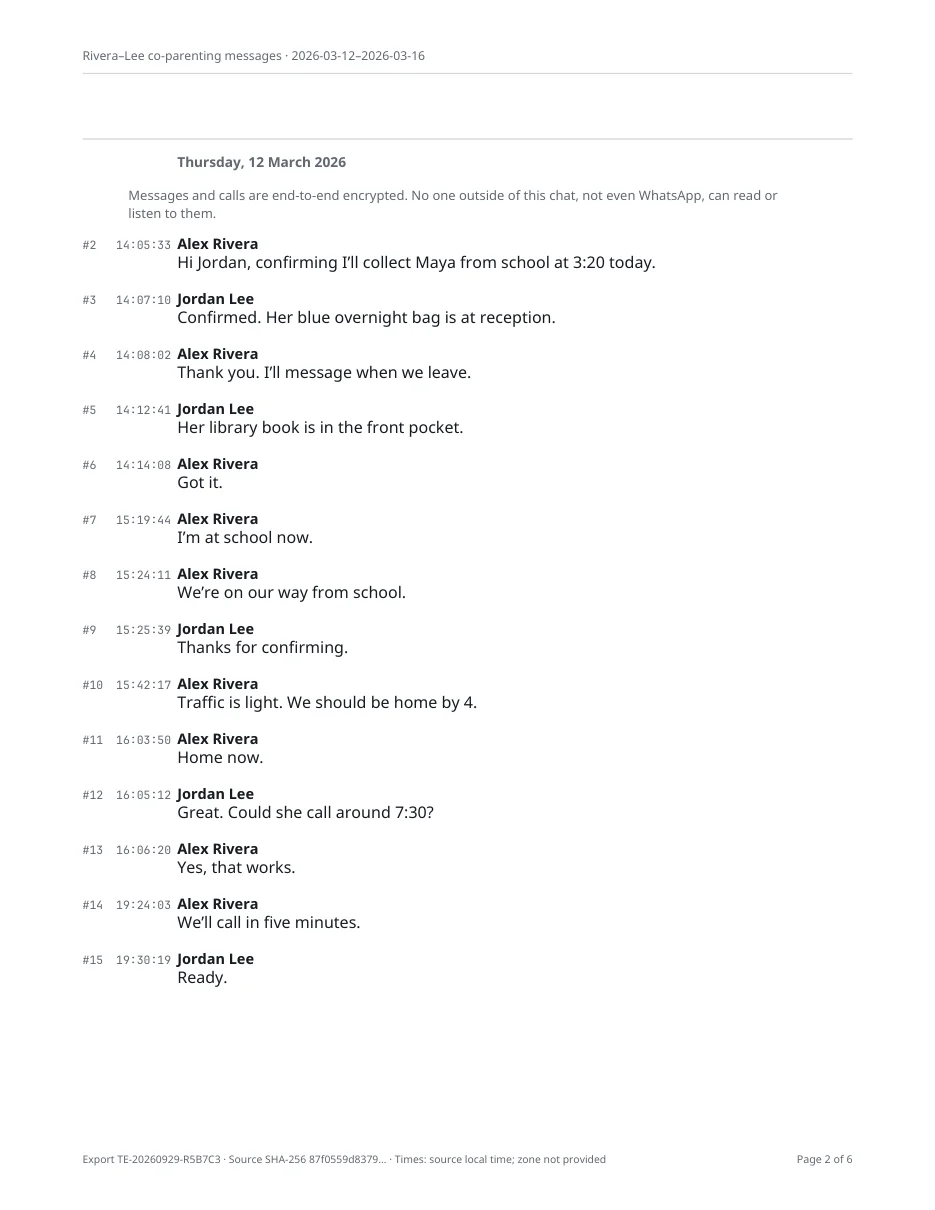
Screenshots
- Open the conversation in Messages and tap the name at the top. Note the phone number or email if identity matters.
- Scroll to the first message you need and take a screenshot (side button and volume up on Face ID models).
- Scroll down, leaving one or two messages from the last screenshot in view, and take the next one. The overlap shows nothing was skipped.
- Continue to the end. Do not crop the header, date dividers or bubble edges in your originals.
- In Photos, select the screenshots in order and tap Share › Print. Tap No Printer Selected, pick an AirPrint printer on the same Wi-Fi network, and print.
Watch out for
- Most bubbles show no exact time; only the dividers do.
- The name at the top comes from Contacts and can be edited by anyone with the phone.
- Reactions, edits, voice notes and full-size attachments may not show.
- Best for
- A short exchange, or when how it looked matters
- Time
- Minutes for a short chat; hours for a long one
- Cost
- Free
- Source
- support.apple.com ↗