
How to Export iPhone Messages and iMessage Conversations
Short answer
To export an iPhone conversation, print it to PDF from Messages on a synced Mac (File › Print), export it with desktop software that reads an iPhone backup on Windows or Mac, or run iOS 26's Find Conversation and Find Message Shortcut actions on the phone, which the Text Records app builds on. Messages itself has no export button. Check every export against the phone.
On this page
Key facts
Checked against sources on October 30, 2026
| Third-party iPhone access | App Review Guideline 2.5.2 says apps may not read or write outside their designated container, so an ordinary app cannot open Messages' private database.developer.apple.com ↗ |
|---|---|
| iOS 26 route | Shortcuts 26 adds Messages actions named Find Message and Find Conversation; Apple does not publish their complete output schema.support.apple.com ↗ |
| Mac route | Messages on Mac can synchronize message history through Messages in iCloud and can print a conversation with Command-P.support.apple.com ↗ |
| Computer backup route | Finder, iTunes and the Apple Devices app make a backup for restoring the phone. Reading the Messages inside it needs third-party desktop software.support.apple.com ↗ |
| Messages in iCloud | It keeps message history updated across devices; it is synchronization, so deletion propagates rather than creating an independent archive.support.apple.com ↗ |
| Advanced Data Protection | With Advanced Data Protection, iCloud Backup and the Messages in iCloud encryption key inside it are end-to-end encrypted.support.apple.com ↗ |
See each step
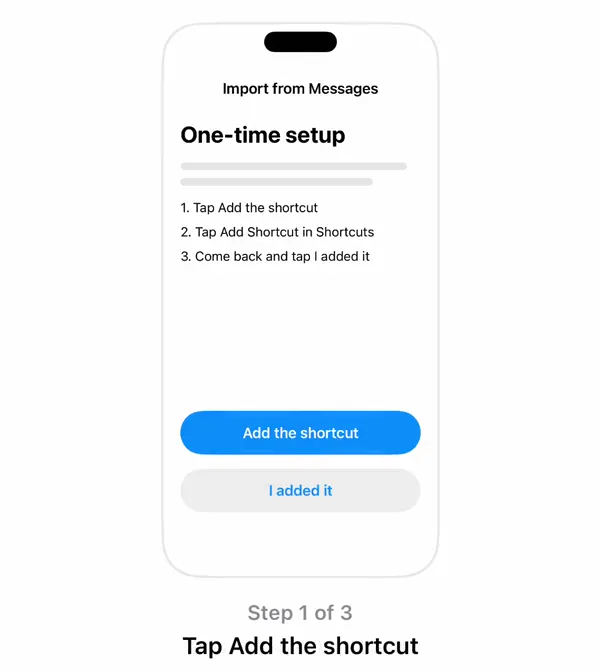
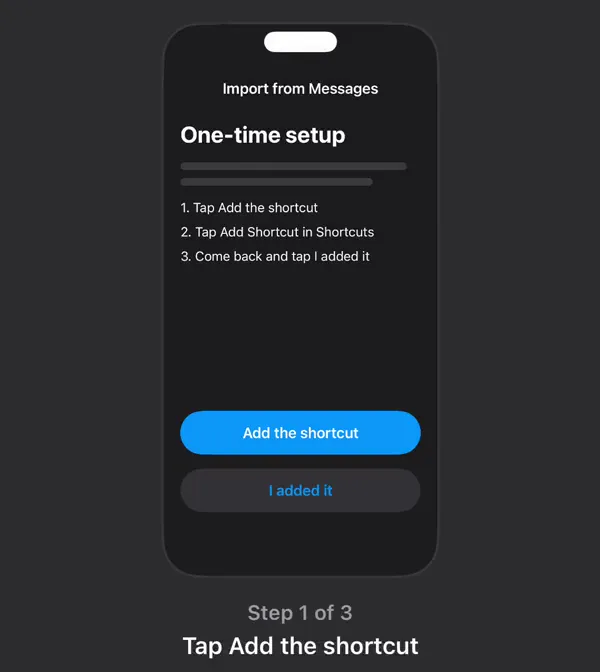
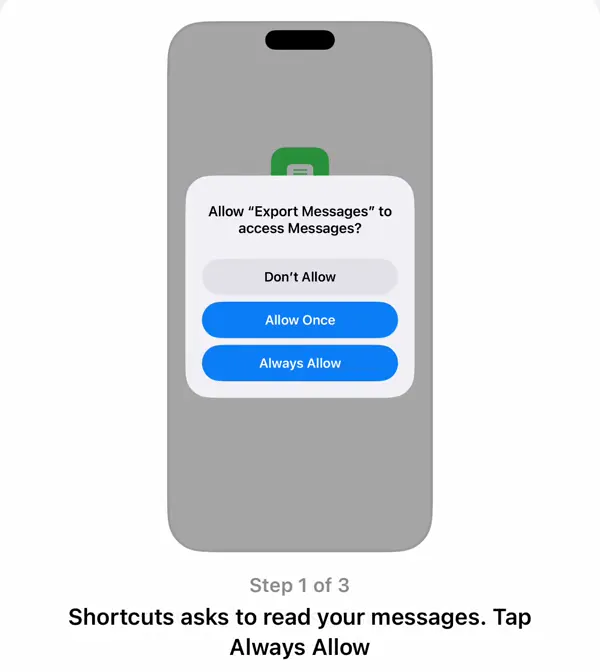
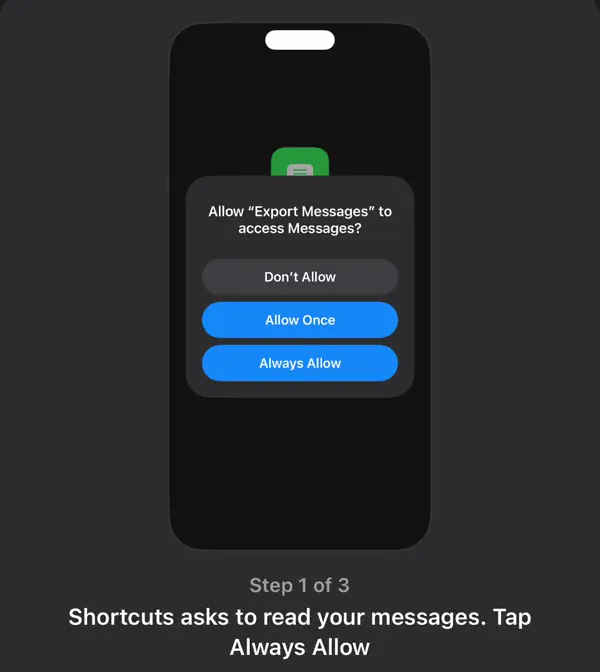
An iMessage export is not one standardized file. The route you choose determines what can be preserved, what can be printed, and what may be missing.
Choose the route only after deciding whether the recipient needs a visual transcript, searchable rows, original attachments, or a restorable preservation copy.
Why iPhone has no Messages export button
Messages is a protected system app, not a document folder. It offers sharing for individual content and printing from a Mac, but Apple does not provide a whole-conversation export command on iPhone.
An App Store app also cannot simply scan your texts. Section 2.5.2 of Apple’s App Review Guidelines says apps must be self-contained and “may not read or write data outside the designated container area.” The Messages database belongs to another protected container. Granting Photos, Contacts, or Full Access to an unrelated keyboard does not grant Messages-history access.
This explains why legitimate iPhone workflows need an explicit handoff:
- You run Apple Shortcuts actions that find messages and pass the results onward.
- Apple Messages synchronizes data to your Mac, where you print it.
- You back up the iPhone to a computer, and desktop software reads the backup.
Screenshots are a third visual capture method, but they are not a database export. See the full iPhone printing guide for screenshot and copy/paste instructions.
Route 1: iOS 26 Shortcuts
Shortcuts is the only Apple-documented on-iPhone route for finding message history in structured form. In iOS 26, Apple added Messages actions named Find Message and Find Conversation.
The general workflow is straightforward:
- Open Shortcuts › + › Add Action.
- Search for and add Find Conversation.
- Add Find Message and configure the filters offered on your device.
- Limit the first test to one conversation and a short date range.
- Add Quick Look or another preview action.
- Pass results to a save, formatting, or compatible app action.
- Compare the result with the same range in Messages before increasing the range.
The verified fact stops at the action names and their existence. Apple’s release note does not define all message properties exposed to Shortcuts. It does not promise seconds, read or delivered status, Tapbacks, reply relationships, edited versions, unsent-message markers, phone numbers, or attachment binaries. Those details can change by OS release and action configuration.
Treat the Shortcut output as its own acquisition route. Record the iOS version and Shortcut version. Mark unavailable fields as unavailable. Do not infer an exact time from message order or turn a contact display name into a claimed phone number.
For a long history, use date batches with one overlapping boundary message. If a run stops, reduce the range rather than assuming the returned set is complete. Keep the phone unlocked if your tested workflow requires it, and inspect any downloaded Shortcut for network actions before running it on private content.
Route 2: a Mac with Messages
A Mac offers both a readable Messages interface and local message data. It can be the simplest free route when you already use the same Apple Account on both devices.
Print or save a PDF from Messages
- On the iPhone, review Settings › [your name] › iCloud › See All › Messages.
- On the Mac, open Messages › Settings › iMessage and review synchronization.
- Allow the Mac to finish receiving the relevant history.
- Open the conversation and scroll upward until the starting message has loaded.
- Choose File › Print or press Command-P.
- In the print dialog, choose PDF › Save as PDF.
- Check the first page, last page, dates, identities, and attachments.
Apple’s macOS 26 keyboard-shortcut guide confirms that Command-P prints the conversation. It does not state that the command automatically retrieves every older message. Load the intended range and trust the preview, not the conversation’s apparent age.
The PDF is human-readable but not a structured data export. Timestamp presentation follows Messages’ print layout. It may not place an exact time beside every bubble. Capture participant identifiers separately if the contact name alone is insufficient.
Mac data is only as complete as the Mac’s local state. If Messages in iCloud has not finished syncing, old messages or attachment files may be absent. Open crucial attachments and wait for downloads before acquisition.
Route 3: a computer backup and desktop software
This is the usual route on Windows, and on a Mac when you need a time and phone number beside every message. Apple’s Finder, iTunes and Apple Devices backups exist to restore a phone, so you need third-party software to read the Messages data inside them.
- Install paid software that reads iPhone backups. The app comparison lists Windows and Mac options.
- Connect the iPhone with a cable and tap Trust if asked. The software makes a backup, or opens one you already have.
- Choose the conversation and a date range.
- Turn on per-message times and contact details if the software offers them.
- Export to PDF, CSV or text, and check the first and last messages against the phone.
Know the trade-offs. You are giving desktop software a full copy of the phone’s data, so choose a vendor you trust and never enter your Apple Account password into it. If the backup is encrypted, you need its password; Apple says there is no way to recover an encrypted backup without it. With Messages in iCloud on, attachments stored only in iCloud are missing until you open them on the phone.
What each route includes
The safe answer is narrower than many product pages suggest. Apple verifies that the Shortcut actions exist, that Messages can synchronize through iCloud, and that Mac Messages can print. Apple does not provide a universal export schema across those routes.
| Data | iOS 26 Shortcut | Mac print/PDF |
|---|---|---|
| Message text | Expected, but test output | Visible loaded text |
| Sender direction | Test on your configuration | Visual bubble layout |
| Date and time | Field details not publicly documented | Rendered time markers |
| Seconds | Unverified | Not promised |
| Contact number/address | Unverified | Header may favor display name |
| Attachments | Public action note is silent | Loaded visible attachments |
| Tapbacks | Unverified | May render visually |
| Replies | Unverified | May render visually |
| Read/delivered status | Unverified | Not a dependable export field |
| Edit/unsend history | Unverified | Current UI representation only |
“Unverified” is not the same as “never available.” It means the primary documentation reviewed on October 30, 2026 does not support a promise. Test the route and state what was observed.
Does iCloud save text messages?
iCloud can hold message-related data in two different systems. Confusing them can cause a preservation mistake.
Messages in iCloud is synchronization
Messages in iCloud keeps the history updated across signed-in devices. A message deleted on one device is deleted across synchronized devices. It is useful for bringing history to a Mac, but it is not a browseable, point-in-time archive you can open at iCloud.com.
Review it at Settings › [your name] › iCloud › See All › Messages. Let synchronization finish before changing settings. If a dispute is foreseeable, make a separate preserved copy before deleting anything.
iCloud Backup covers data not already syncing
Apple explains that iCloud Backup stores device information and settings that do not already synchronize to iCloud. If Messages in iCloud is off, messages may be included in the device backup. If it is on, the message history is handled by Messages in iCloud rather than duplicated as ordinary backup content.
An iCloud backup is designed for restoring a device, not downloading one conversation as PDF.
Advanced Data Protection and encryption keys
Under standard data protection, Apple says Messages in iCloud is end-to-end encrypted when iCloud Backup is disabled. If iCloud Backup is enabled, the backup includes a copy of the Messages in iCloud encryption key so Apple can help with recovery. With Advanced Data Protection, both iCloud Backup and the included Messages key are end-to-end encrypted.
Advanced Data Protection improves cloud-key protection; it does not add an export button or make synchronization an archive. It also shifts recovery responsibility to the user. Follow Apple’s setup and recovery guidance before enabling it.
Preserve an export for a dispute
Preserve the source before making a polished excerpt. Keep the iPhone, an untouched export, and a separate working copy. Record the date, device, iOS version, route, app version, selected range, time zone, and any observed omissions.
Do not rename contacts on the source phone just to improve a report. Add a separate participant key. Do not crop away date separators or omit intervening pages without labeling the result as an excerpt. The preservation guide and court guide explain these choices.
If an attachment matters, save the original file as well as the transcript preview. If a voice message can expire, preserve it promptly using a sanctioned save option. If the stakes are high or the phone may be examined, ask counsel or a qualified examiner before changing synchronization settings or creating new data on it.
How Text Records exports iPhone messages
Text Records for iPhone uses the iOS 26 Shortcut handoff rather than private database access. It processes imports locally and produces PDF, CSV, and TXT plus a SHA-256 manifest. It also accepts the exports WhatsApp, Instagram, Messenger, Telegram and LINE make. It does not read screenshots or screen recordings.
Importing, review and a 100-message preview are free, and every price is shown before you pay. It does not add fields Apple does not expose, guarantee that a Shortcut retrieved every message, or recover deleted content. The app makes provenance and review part of the workflow. Get Text Records, or use the other routes above. To put the result on paper, see how to print iPhone texts.
Checklist
- Decide whether you need a readable PDF, structured CSV, attachments, or a preservation copy.
- Record the iPhone model, iOS version, conversation participants, export date, and method.
- Test the first and last message, count, sender identity, timestamps, reactions, and attachments against the phone.
- Keep the original device and an untouched export before making excerpts or annotations.
Limits worth knowing
- Apple does not document whether Shortcut results include seconds, read receipts, Tapbacks, edits, unsends, or every attachment type.
- A Mac may be incomplete while Messages in iCloud is still syncing or an attachment is offloaded.
- Finder, Apple Devices, and iTunes create backups for restoring a phone; they do not produce a readable conversation PDF or CSV.
- An export cannot restore a message already absent from the phone, synchronized devices, and retained backups.
- A hash can reveal later file changes, but it does not prove who authored a message.
Questions people ask
Can I export an entire iMessage conversation from an iPhone?
There is no export-conversation button in Messages. Use a synchronized Mac, desktop software that reads an iPhone backup, or an iOS 26 Shortcut, then check completeness against the phone. Text Records turns the Shortcut route into a PDF on the iPhone.
How do I export an iMessage conversation as a PDF?
On a Mac, open the conversation in Messages, scroll up until the first message you need has loaded, choose File › Print, then PDF › Save as PDF. Without a Mac, use backup software on a Windows PC or an app on the iPhone.
Can I download my text messages from my iPhone to a Windows computer?
Not with Apple's tools alone. The Apple Devices app makes a backup for restoring a phone, not a readable conversation. Third-party desktop software can read that backup and export the messages. The app comparison on this site lists options.
How do I get a transcript of text messages on iPhone?
Export the conversation with one of the routes above, then print the PDF. For one shared with a lawyer or court, use a route that shows the sender and time on each message, then print the PDF.
Why can't an App Store app read all my text messages?
iOS isolates each app's files. Apple's App Review Guideline 2.5.2 bars apps from reading or writing outside their designated container, and Apple provides no general Messages-history API to ordinary apps.
Does iCloud save text messages?
Messages in iCloud synchronizes the message history across devices. If it is off, Messages data may instead be included in iCloud Backup; neither should be treated as an independent, browseable archive.
Does an iPhone backup include text messages?
Apple says device backups include information not already syncing to iCloud. Messages handling therefore depends on whether Messages in iCloud is enabled. A backup is for restoring a phone; it does not give you a readable conversation.
Can an export include Tapbacks and read receipts?
Apple has not documented those fields for the iOS 26 Shortcut actions, and a Mac printout shows only what Messages renders. Inspect a sample instead of assuming.
Sources
- App Review Guidelines, section 2.5.2Apple Developer
- What's new in Shortcuts 26Apple
- Back up iPhoneApple
- Set up iCloud for MessagesApple
- iCloud data security overviewApple
- Keyboard shortcuts in Messages on MacApple
- How to back up your iPhone, iPad, or iPod touch with WindowsApple
Facts were checked on October 30, 2026. Platforms and rules change. If something here is out of date, tell us.
Related guides
Export the whole chat on your iPhone
Text Records imports a chat from Messages, WhatsApp, Instagram, Messenger, Telegram or LINE and exports a PDF with a sender, date and time on every message, plus CSV and TXT. Nothing is uploaded. Free to import and preview.


Text Records is an iPhone app
Point your iPhone camera at the code to install it. No account needed.